

Navigation Configuration
Overview
Use BibleReaderView modifiers to choose where its book, chapter, and Bible version controls appear and how its actions use your app's navigation stack. Configure the SDK as shown in the Quick Start before using these examples.
Code
These are the defaults. The reader works without a NavigationStack and does not create one for its main content. The same modifiers work with BibleReaderView(reference:).
| Modifier | Default | Purpose |
|---|---|---|
.navigationPlacement(...) | .bottomBar | Sets the preferred edge for the book, chapter, and version controls when no horizontal tab bar is detected. |
.usingNavigationStack(...) | .none | Describes whether the reader may add actions to a stack supplied by your app and manage its navigation bar. |
These choices are independent. For example, the chapter and version controls can sit at the bottom while Search and the menu use the host's navigation bar at the top. Neither modifier changes your app's selected tab or creates a navigation stack.
Position the Reader Controls
On iOS 18 and later, if a SwiftUI tab bar is present, the reader places its controls opposite that tab bar when it is detected at the top or bottom. For example, when your app's tab bar is at the top of the screen, the book and chapter picker and Bible version picker appear at the bottom; when the tab bar is at the bottom, those pickers appear at the top. This takes precedence over navigationPlacement(_:).
| App tab bar | Reader controls |
|---|---|
| Top | Bottom |
| Bottom | Top |
| No detected horizontal tab bar, including sidebar placement | Preferred edge; bottom by default |
| Tab placement detection unavailable, including iOS 17 | Preferred edge; bottom by default |
For example, resizing an iPad window can cause iPadOS to move your app's tabs from top to bottom. The reader moves its controls to the opposite edge automatically; your app does not need a width breakpoint.
To prefer top controls when there is no detected tab bar:
Code
This is a preference, not a forced position. It does not move your app's tabs, and detected top tabs will still place the reader controls at the bottom.
Choose How to Use a Navigation Stack
| Option | When to use it | Effect |
|---|---|---|
.none | You want BibleReaderView to use its own custom reader controls, with or without an existing stack. | Adds no native toolbar items and leaves any host navigation bar unchanged. |
.shared | Your existing stack has a Back button, title, or other toolbar items to preserve. | Adds Search and the reader menu to the host toolbar. Leaves bar visibility and minimization under your app's control. |
.justForReader | Your app supplies a stack dedicated to the reader, such as the root of a Bible tab. | Hides the horizontal navigation bar and uses custom controls. When a vertical toolbar is available, adds native reader actions and keeps that toolbar visible. |
Both .shared and .justForReader require your app to provide a NavigationStack. The modifier does not check for or create a missing stack. If the reader is already inside a stack, use that stack instead of nesting another one.
Using custom controls
With .none, Search and the menu use the reader's own controls. An existing host navigation bar is left alone and may still occupy space above the reader. Choosing .none does not remove that stack or hide its bar.
Code
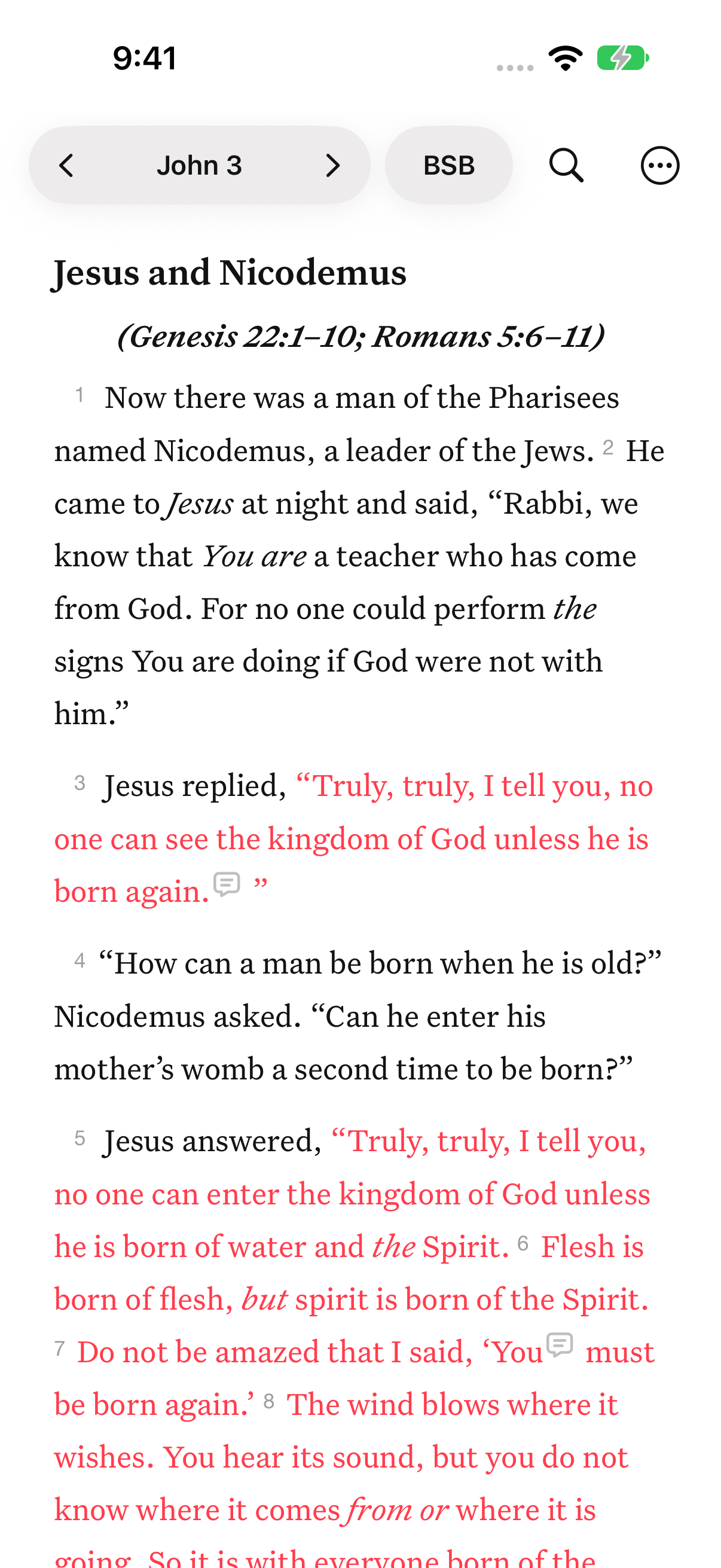
.none, without a tab bar.Sharing your app's stack
Use .shared when pushing the reader from another screen. The existing stack supplies the Back button, while the reader adds Search and its menu. Your app must keep the system navigation bar visible so users can reach those actions.
Code
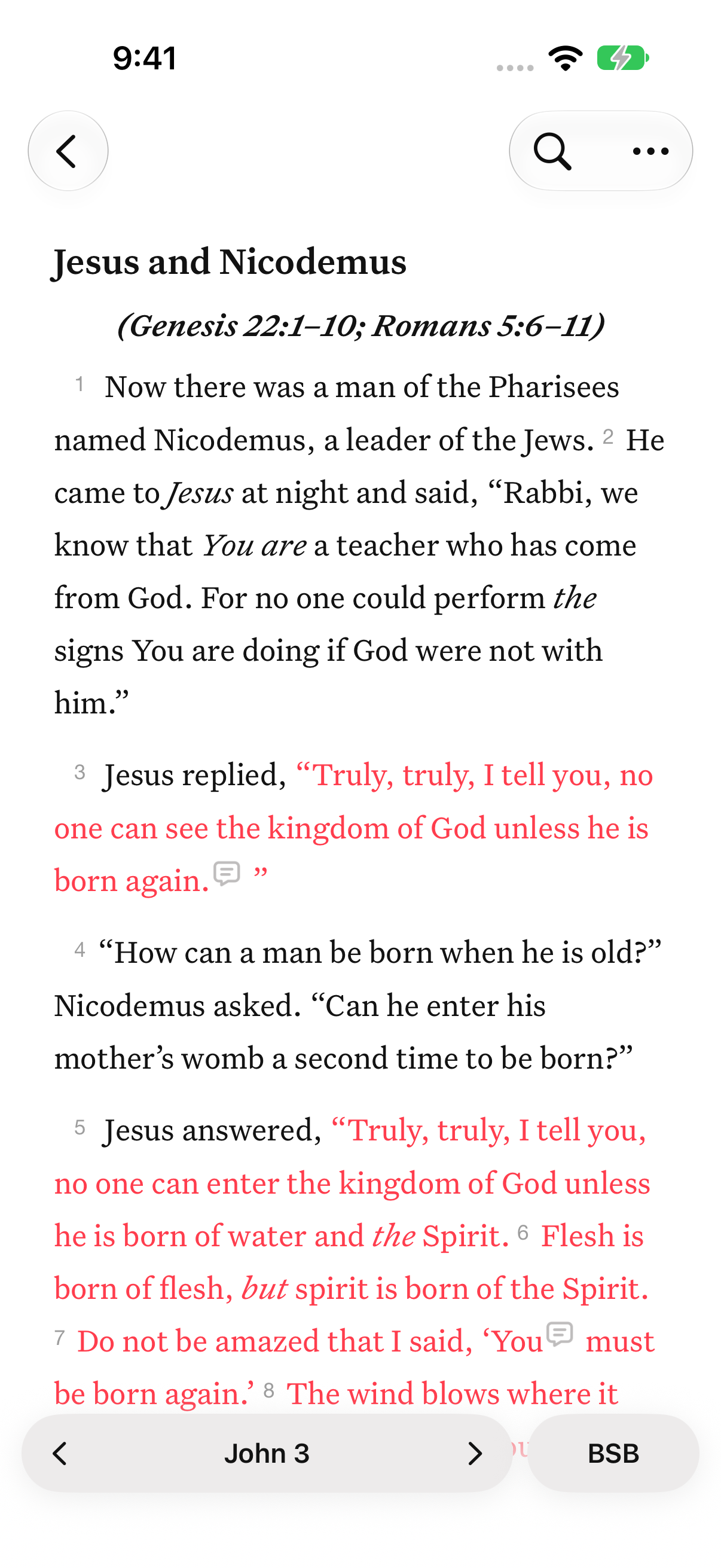
.shared, without a tab bar. Back belongs to the host app; Search and the menu use its toolbar.Dedicating a stack to the reader
Use .justForReader when the reader can manage the entire navigation bar:
Code
On iOS and iPadOS, this hides the horizontal navigation bar, including any host title, Back button, or toolbar items in that bar. Choose .shared instead if users need those controls. When the system supplies a vertical toolbar, .justForReader keeps it visible and disables its minimization, including when the custom reader controls collapse.
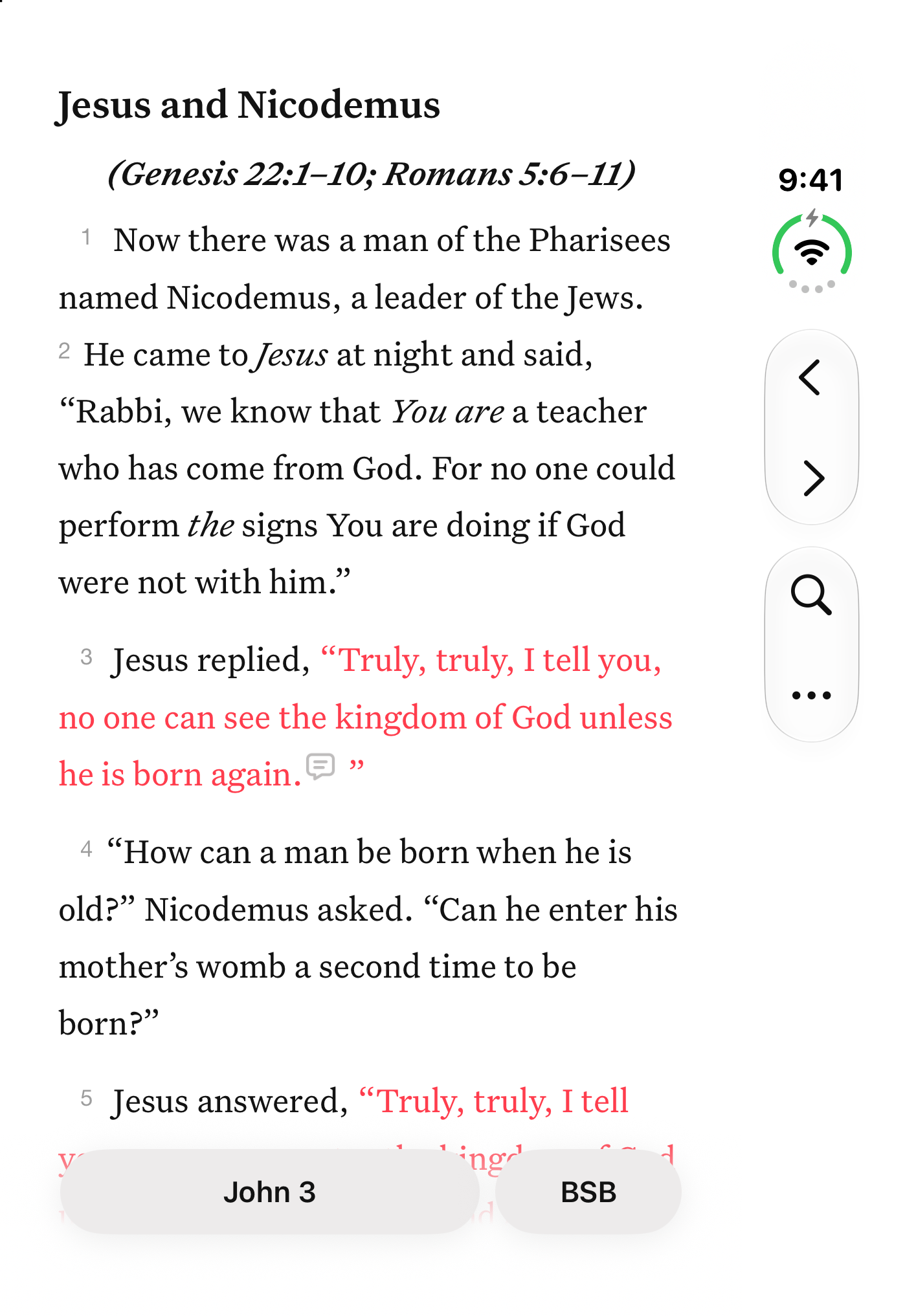
.justForReader and no tab bar, showing John 3 BSB. On the right, the vertical toolbar contains Previous Chapter, Next Chapter, Search, and the three-dots menu. The book/chapter and Bible version pickers remain custom controls at the bottom.Support Tabs on iOS 17
Automatic tab placement detection is unavailable on iOS 17. If your reader is inside a bottom TabView, request top controls explicitly:
Code
Use this configuration across supported iOS versions without an availability check. iOS 17 uses the top preference; iOS 18 and later give detected tab placement priority, including when iPad tabs move to the top.
Without an explicit preference, an iOS 17 reader uses bottom controls even inside a bottom TabView. Its placement may therefore change after an OS upgrade enables detection.
For a custom tab bar that SwiftUI does not report, set the preferred reader edge opposite your tabs. Update that preference if your custom tabs move. The current API has no separate host-tab-location override.
Adaptive Controls and Menus
The book, chapter, and version controls remain custom reader views in every stack mode. In .shared and .justForReader, previous and next chapter actions may move into the system toolbar when a vertical toolbar is available (for example, on iPhone Duo); otherwise, they remain beside the book and chapter button.
When using native toolbars on iOS 27 and later with a supported toolchain, the reader places settings and sign-in actions in ToolbarOverflowMenu. Search is a native toolbar item and can move into the system overflow menu when space is limited. Earlier systems use a regular toolbar menu. Sign-in availability follows your SDK configuration and the user's authentication state.
As users scroll, the custom controls can collapse to compact chapter and version labels to reveal more text. Tapping those labels restores the controls. Native toolbar items remain part of the host toolbar: .shared respects your app's visibility and minimization settings, while .justForReader keeps a vertical toolbar visible.